Suno Tutorial: From the first prompt to the finished song

Suno This is currently the most popular way to generate complete songs using artificial intelligence. A single sentence can be transformed into an entire song in seconds, complete with vocals, beat, and melody. Suno Tutorial guides you step by step from the first prompt to the finished track.

Because we at Peak-Studios work with mixing and mastering every day, you also get an honest, professional perspective. So we don't just show you how Suno works. We also tell you where its limitations lie and how a raw AI track becomes a radio-ready song.

The guide is aimed at two groups. Firstly, at... Beginner, who simply enjoy creating songs. Secondly, to ProducersThose who want to use Suno as a source of ideas and samples. Let's get started.

Table of Contents

What is Suno and how does it work?

Before this Suno tutorial takes you to your first song, let's briefly cover the basics. You can access Suno in your browser at suno.comIt's an AI music generator. It creates a finished piece of music from a text description. This description is called... Prompt.

You describe the song you want in words. The AI ​​then composes the melody, harmonies, beat, and even the lyrics. Unlike traditional music software, you don't need sheet music or an instrument. That's precisely what makes it so appealing.

Why Suno is so popular

Moreover, everything runs entirely in the browser. You don't need to install anything or buy any expensive software. That's why Suno is currently the most popular tool for creating music with AI. It works for absolute beginners as well as being a sketching tool for professionals.

Incidentally, many producers use this method quite deliberately. They generate individual samples or ideas, which they then develop further in their own DAW, such as Logic, Ableton, or FL Studio.

Model development in the Suno tutorial: from v3.5 to v5.5

Suno is evolving rapidly. Each new model version sounds more natural and cleaner. Early versions like v3.5 often sounded harsh. From version 5 onwards, the quality improved significantly. Currently, v5.5 is the most powerful model.

Therefore, a simple rule applies to this Suno tutorial: always work with the latest model if possible, as older versions no longer achieve today's sound quality.

The interface in this Suno tutorial: the Create area

After logging in, you'll see a menu bar on the left. The most important section is called... CreateThat's where your songs are created. Within Create you'll find three modes:

  • Simple: The fastest way – one sentence is enough.
  • Advanced: full control over text, style and fine-tuning.
  • sounds: For short sound effects, one-shots and loops.

We'll go through these three modes one after the other. Then we'll cover the advanced features. By the way, each generation uses up credits. How many you have depends on your plan.

Suno compared to other AI tools

Suno isn't the only tool for AI-powered music. Udio, for example, is equally well-known. Both generate complete songs from lyrics. However, Suno stands out with its very simple operation and strong vocals. Therefore, it's often the best choice for beginners. Those seeking maximum control should test several tools and stick with the one that sounds best to them.

The first song in 60 seconds: Simple Mode
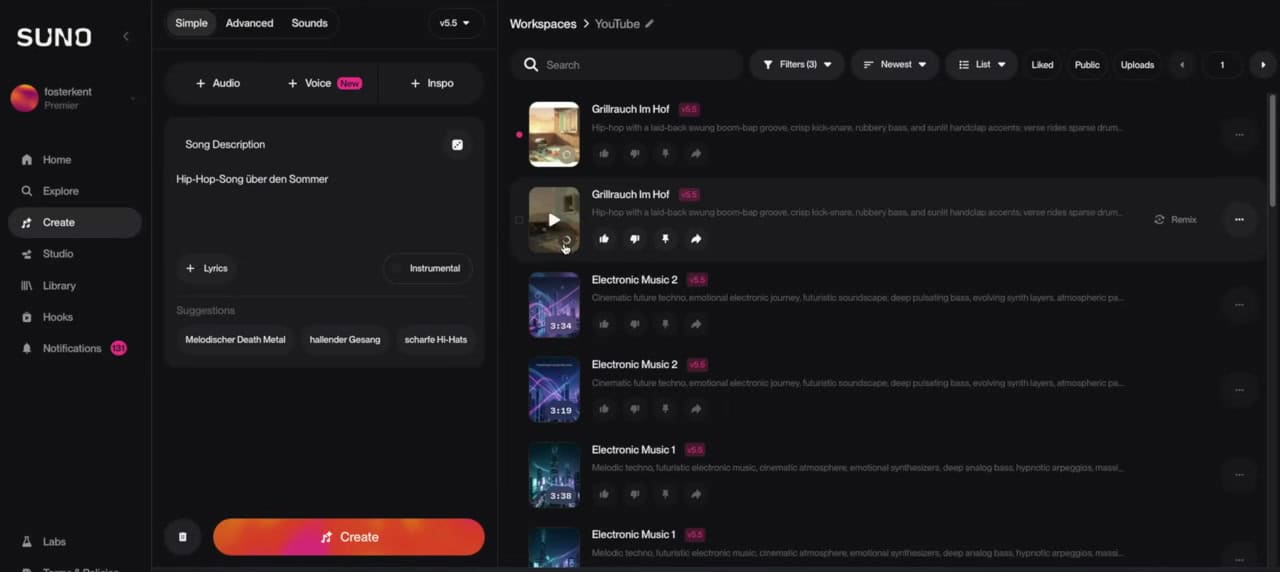
Suno Simple Mode with Song Description Field in the Suno Tutorial
Suno's Simple Mode: One sentence as a prompt is sufficient for the first song.

Your first step in this Suno tutorial is deliberately simple. You stay in the tab. Simple and click in the field Song Description. You write your prompt there. It can be very simple at the beginning, for example: "Hip-hop song about summer".

Then you click on CreateSuno gets started immediately. The AI ​​usually generates something for you. two versions Simultaneously. This gives you an immediate choice. A small rotating circle indicates that the song is still being created. Often, you can still listen to a preview.

What happens after generation

Both versions will automatically be added to your library. There you can listen to them at your leisure and compare them. Afterwards, you can rename the song, download it, or continue working. If you don't like either version, simply click Create again.

The surprising thing is that even this brief prompt delivers a surprisingly usable result. You get a verse, a chorus, and a coherent groove. That's perfectly sufficient for that initial wow moment. However, anyone who wants a more specific result needs a better prompt. Therefore, let's take a closer look at that.

Comparing two versions – a tip from the Suno tutorial

Suno almost always generates two versions of the same prompt. Therefore, you should listen to both carefully. They often differ significantly in melody, energy, or vocals. Then, choose the stronger version and work only with that one. This way, you don't waste time on a weaker result.

Writing better prompts is half the battle.

The most important part of every Suno tutorial is the prompts. A one-line prompt delivers randomness. A well-thought-out prompt delivers control. The trick is simple: Describe to the AI ​​as precisely as possible what you want to hear. And do so in multiple dimensions.

Instead of "a hip-hop song about the summer," a strong prompt might look like this: "Relaxed, melodic hip-hop with warm vintage vibes. Nostalgic vinyl samples, soulful chords, laid-back boom-bap drums. Melodic rap with a sung chorus, natural and likeable voice."

The second advantage lies in the fine-tuning. If you're almost happy with the result, you can selectively change details. For example, you might say, "I'd prefer more brass instead of guitar." Then you continue working until the song is truly perfect.

The Prompt toolkit: six questions for your Suno tutorial

To ensure you don't forget anything, this toolkit will help you. Ideally, a good Suno prompt answers these six questions:

  1. Genre & Mood: Which genre, which general mood?
  2. Instrumentation: Which specific instruments and sounds?
  3. Tempo & Rhythm: Fast or slow, drifting or laid-back?
  4. Singing: Voice, style (rap, sung, spoken word) and character.
  5. Topic & Text: What is it about, what language, what imagery?
  6. Reference sound: What role model do you look to for inspiration – described, not by name?

Prompt examples for different genres

Each genre requires different terminology. Therefore, here are a few approaches to help you get started:

  • EDM: "Melodic House, 124 BPM, driving bassline, euphoric drop, female vocals."
  • Ballad: "Emotional piano ballad, slow tempo, string-heavy, vulnerable voice."
  • Skirt: "High-energy alternative rock, distorted guitars, powerful drums, male vocals."

The pro trick in the Suno tutorial: Prompts from ChatGPT

It's even faster with our free Suno Prompt GeneratorYou enter your topic and receive a ready-made, structured Suno prompt to copy.

Formulating such descriptions manually takes practice. Therefore, experienced users employ a shortcut. They have the prompt read out by a... Large Language Models how to write ChatGPT, Claude or Gemini.

You explain to the language model in everyday language what you want. Then you ask it for a finished product. Suno Prompt and a suitable one LyricsIf you don't like the result, you iterate further: "The text is too tame, make it cooler."

Important – the rule that many overlook: The Suno prompt includes no artist or song namesA command like "do it in the style of Lady Gaga" results in an error message. However, the workaround is simple. You ask the language model to... Style & Design the artist's the beschreibYou then adopt this description. This way, you'll go in the right direction sonically without violating Suno's rules.

Using structure tags in song lyrics

In the lyrics field, you also control the structure of your song. You do this by placing structure tags in square brackets. Common tags include, for example: [Intro], [Verse], [Chorus], [Bridge] and [Outro].

This allows Suno to know exactly where the verse, chorus, and transition are. [Instrumental] You also force a purely instrumental passage. This makes the song sound much more structured and less random.

More structure tags for your Suno tutorial

Besides the basic tags, there are many more. With [guitar solo] For example, you request a solo. About [Spoken Word] You create a spoken passage. And with [Male Vocal] or [Female Vocal] You control the voice directly within the text. This gives you significantly more influence over the structure.

Use negative prompts strategically

Sometimes a particular sound is jarring in every version. That's exactly what negative prompts are for. You explicitly describe what should be missing. For example, "no autotune" or "no fast drums." This reliably guides the AI ​​away from unwanted elements.

Want your Suno song to sound like it came from a studio? Peak-Studios checks and masters your AI music.

Suno Accounts & Pricing: Free, Pro and Premier
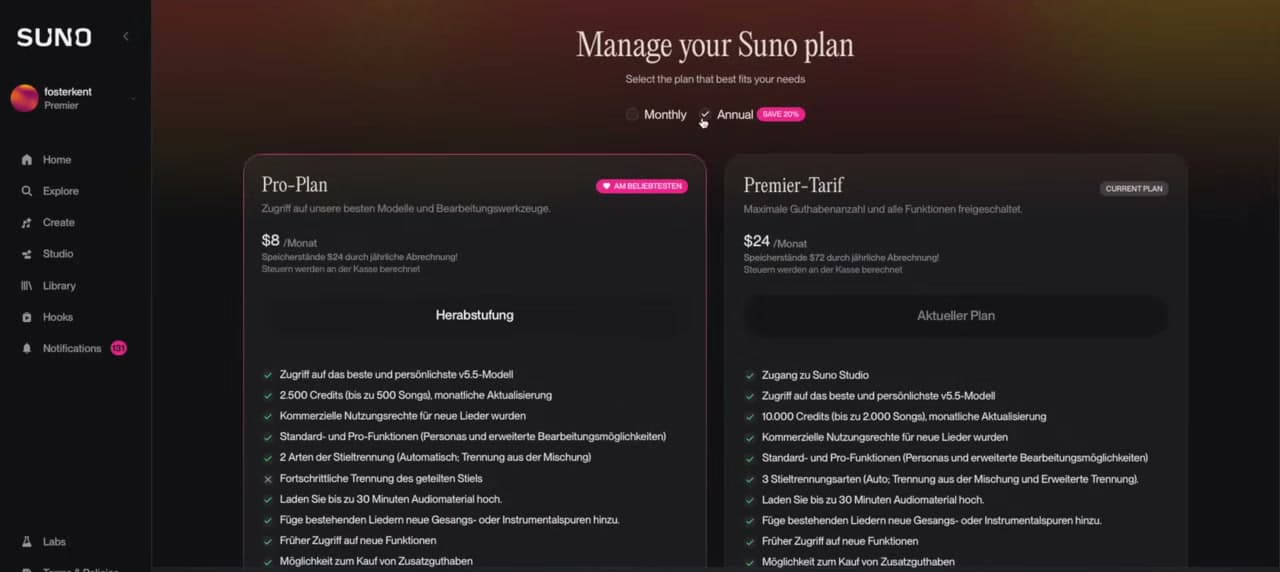
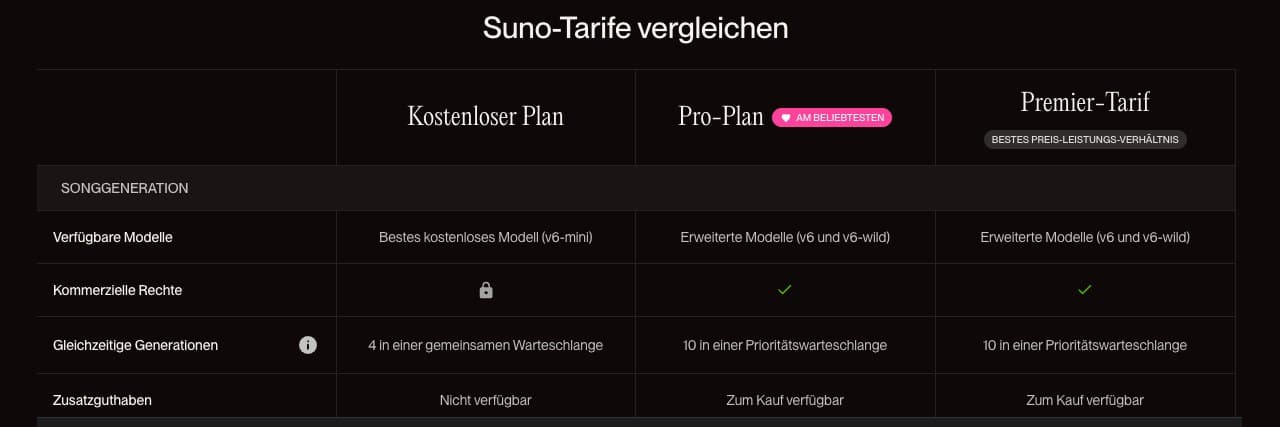
Price overview: Pro plan and Premier tariff compared
Suno's paid plans – Pro (around €8) and Premier (around €24) per month.

A complete Suno tutorial also covers costs. Which account is right for you depends on your goals. Generally, you pay monthly or – slightly cheaper – annually. Besides the free version, there are two paid tiers.

  • Free: Up to 10 songs per day. However without commercial rightsYou may listen to and play the songs, but you may not publish them.
  • Per (around €8 per month): 500 songs per month, commercial usage rights and extended models.
  • Premier (around €24 per month): 2.000 songs per month. But most importantly, you get access to Suno Studio.
Feature comparison of the Free, Pro and Premier plans
Free, Pro and Premier in a feature comparison – commercial rights are only available from Pro onwards.

Which tariff is right for whom?

The most important difference is not the quantity. What matters is the commercial useIf you want to publish your songs, you need at least the Pro plan. For individual instrument tracks, like in a real DAW, there's no way around Premier.

In short: Free is perfectly adequate for trying things out. For serious releases, you should choose Pro. And if you want to work close to production standards, choose Premier. That way you can quickly find the right plan.

Use credits wisely

By the way, each generation consumes credits. Therefore, a simple trick is worthwhile: In Advanced Mode, first generate only the lyrics and check them. Only then should you build the complete song. This will save you valuable credits.

Pay annually or monthly?

Both payment plans can be booked monthly or annually. The annual plan is noticeably cheaper. If you use Suno regularly, the annual subscription is therefore worthwhile. However, if you're just trying it out, it's better to start with a monthly plan. If your credit balance isn't sufficient, you can purchase additional credits as needed.

Advanced Mode: Full control over your song
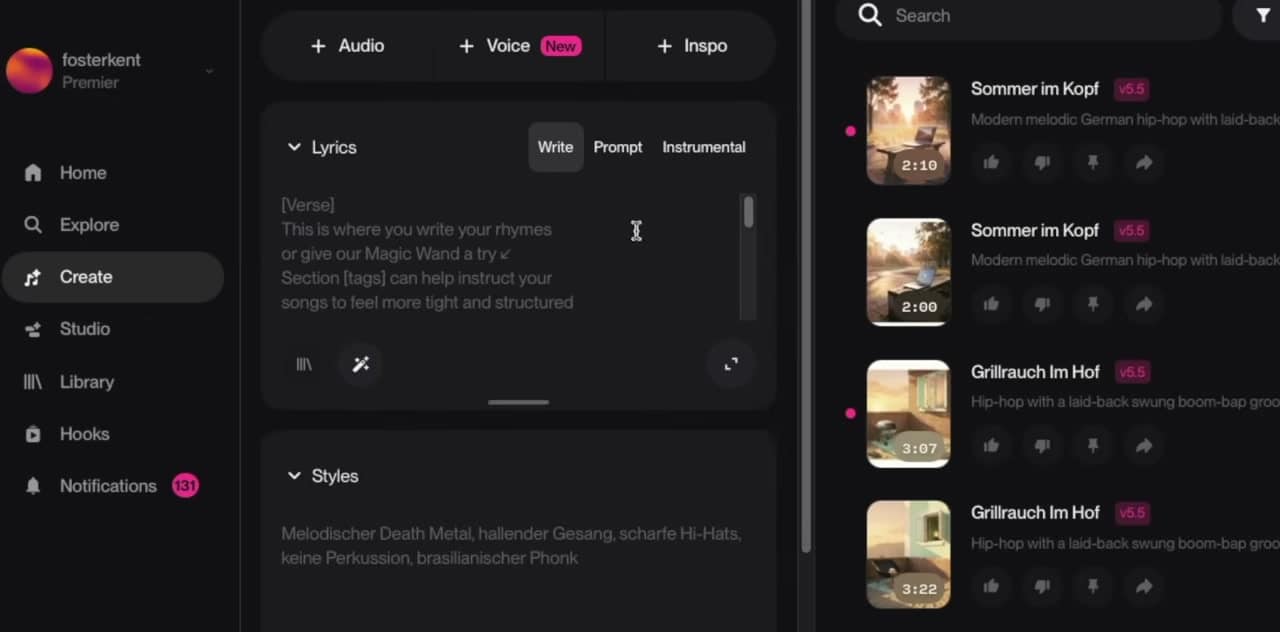
Suno Advanced Mode with Lyrics and Styles field
Advanced Mode: separate fields for Lyrics (Write/Prompt/Instrumental) and Styles.

Now this Suno tutorial goes into more depth. Are you switching from Simple to AdvancedThis opens up significantly more possibilities. Instead of a single field, you now have separate areas. lyricsThe -field offers three options: Write, Prompt, and Instrumental. You can therefore enter your own lyrics, have them generated, or produce purely instrumental music. StylesIn the -field you describe the style.

The prompt option is particularly useful. It allows you to generate and review lyrics first, before creating the song. This saves you valuable credits.

The controls in the Suno tutorial: Weirdness & Style Influence
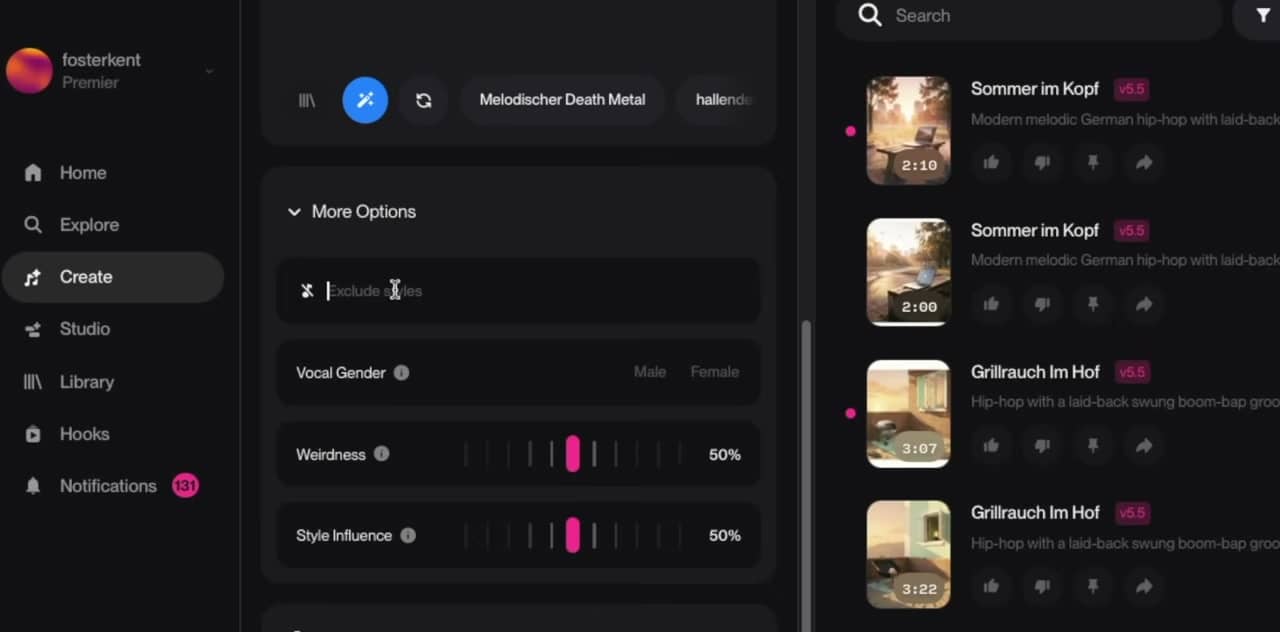
Weirdness and Style Influence controls in Advanced mode
Fine-tuning via the Weirdness, Style Influence, and Vocal Gender controls.

With More Options That's where the fine-tuning is hidden. Here you can control the result very precisely:

  • Exclude Styles: Here you enter what you not If you want to hear something, and an electric guitar bothers you, you write "no electric guitar".
  • Vocal Gender: Male or female voice. Alternatively, you can type that into the prompt.
  • Weirdness: How bold the AI ​​can be. On the left it sounds commercial, on the right outlandish. In the red zone, it sometimes just sounds like static. Therefore, the rule is: initially set the slider to the middle.
  • Style Influence: How strictly Suno adheres to your prompt. High means precise execution, low means more surprise.

A practical tip from the studio: Always give one Song title and number the versions. This way you'll keep track even with many iterations.

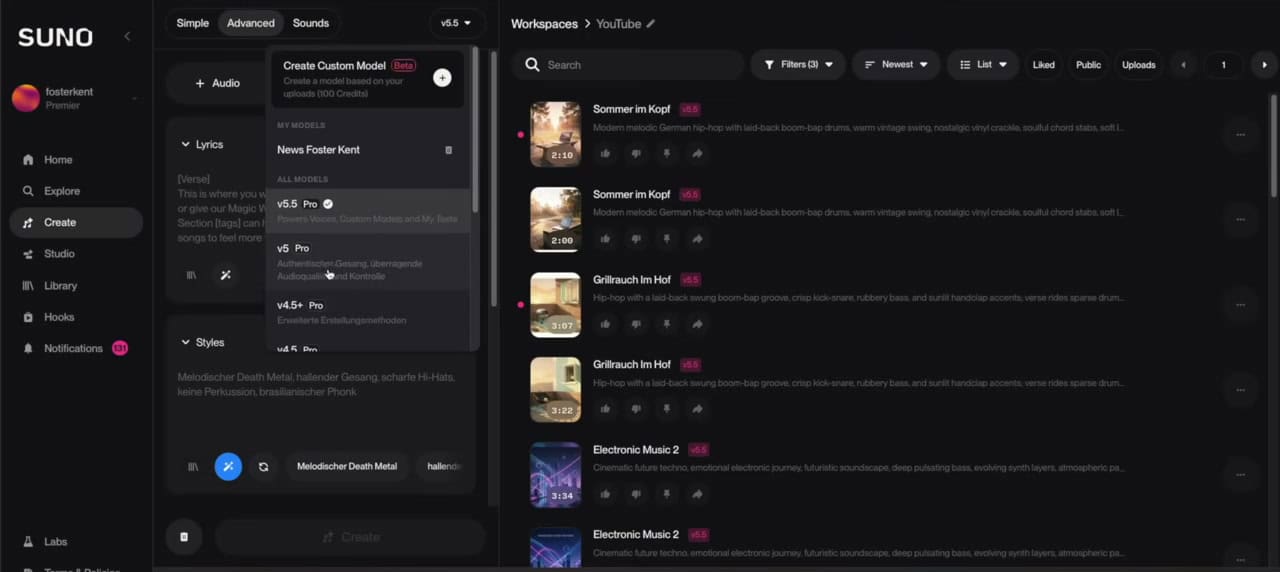
Models in the Suno Tutorial: v5, v5.5 and Custom Models

Model selection with v5.5, v5 and Custom Model
Model selection in Suno: v5.5 is currently the best choice.

In the top right corner, you select the AI modelSome users prefer v5, others v5.5. It's a matter of personal preference and worth testing. However, our rule of thumb remains clear: work with the latest model. Create Custom Model You also train your own model based on your uploads.

Workspaces: Bringing order to the song chaos

Workspaces These are simply folders for your projects. If you're working on a birthday song for Grandma, you create a separate workspace for it. This keeps it cleanly separated from your release material. Small feature, big impact.

Combining cover songs and personas

Advanced and Personas work well together. First, you create a song with a voice you like. Then, you save that voice as a Persona. Afterward, you use it for new songs or for a cover in a different style. This keeps the vocals consistent even as the music changes.

Custom voices (personas) and audio upload
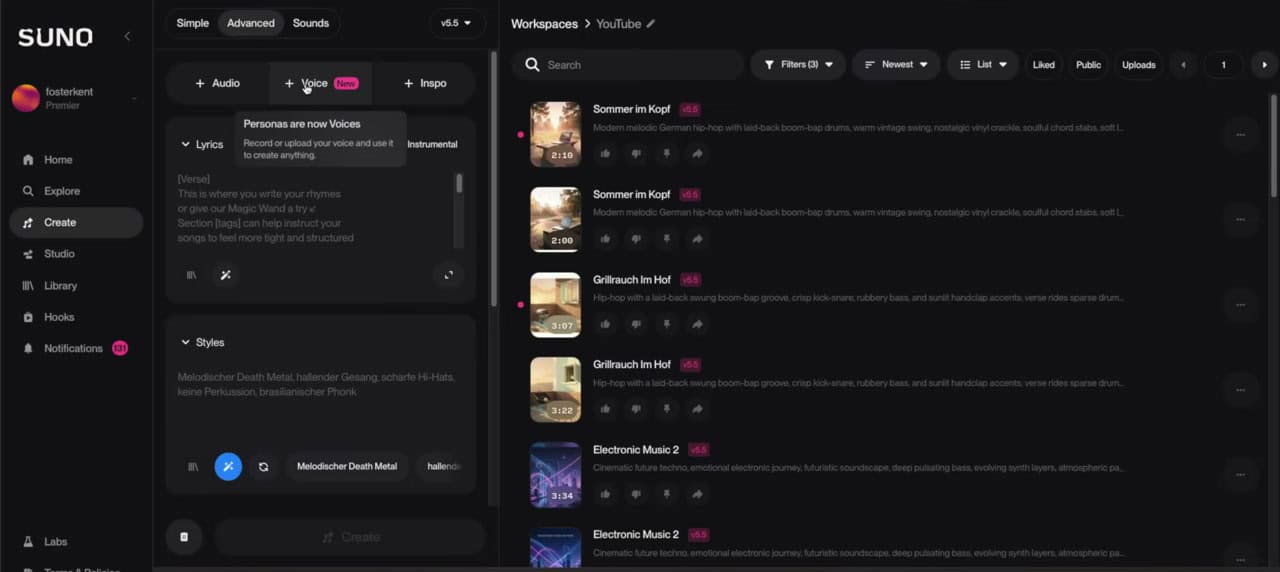
Voice and Personas function in the Create area
Save and reuse your own voices as personas.

The Suno tutorial will now show you three powerful switches at the top of the Create area: + audio, + Voice and + InspoOver time, you'll build up your own library.

Personas in the Suno Tutorial: Saving and using voices

About Voice You can save a voice you liked. To do this, go to the song, tap the three dots, and select... Remix → VoiceYou can then recall this voice at any time. You can also back it up via Remix → Use as Inspiration a genre and you'll find it later under "Inspo".

This allows you to gradually develop a recognizable sound. This is especially valuable for choosing your own artist name.

Upload your own audio or sing along.

About + audio You upload a file. Alternatively, you can use... All time lap record Record something directly into the microphone. This could be a hummed melody or a sung hook. Then briefly explain what it is. Suno will then use this material as a basis.

Important: If you have already entered text, you select it when processing. "Keep Current"Otherwise, Suno will overwrite your lyrics. The result is often impressive. Suno takes your melody for the chorus and adds to the verses independently. How you can specifically own vocals in AI songs You can read how to install it in the linked article.

When is an audio upload really worthwhile?

Audio uploads are particularly exciting for musicians. You feed your idea to the AI. If you sing a hook, Suno takes over your melody. If you upload a backing track, Suno generates suitable vocals over it. This way, you combine your creativity with the speed of AI.

Suno v5.5: Your real voice, custom models & My Taste

Compare with Suno v5.5 (Release March 2026) the model is not only cleaner and more expressive – it brings three features that fundamentally change the workflow:

  • Voices – your real voice as an instrument. The highlight: You upload your eigene Record your singing or speaking voice (or directly into it), and Suno will sing or rap your songs with it. Unlike previous personas derived from generated songs, this is based on your actual recording.
  • Custom Models – your own model. Pro and Premier users can train up to three personalized models from their own catalog, which learn your style. Around 24 songs in the same style are recommended – more suitable for experienced producers than beginners.
  • My Taste – Personalization for everyone. Suno learns your favorite genres and moods over time. Available on all plans.

Here's how to upload your own voice (step by step)

The voice function activates Paid package (Pro or Premier) ahead. Then it goes like this:

  1. Prepare sample: clean audio from at least approximately 10 seconds – sung or spoken. Practical tip: If you upload Language high, sounds Rap often better than singing; for clean singing, sung material also provides the necessary material.
  2. Upload or record and on “Use Voice” . click
  3. Verify: Suno lets you briefly sing or speak a randomly generated sentence and compares it to your sample – this ensures that it really is your voice.
  4. Name & save.
  5. Use: Im Advanced Mode > Voice You select your voice – backward compatible to Suno v3.5 – and generate it. For a clear style: increase Style Influence (e.g., 85%), decrease Weirdness.

Your voice remains unchanged. privatelyOnly you can use them, and you can delete them at any time.

Important: only your own voice

Precisely because it works so well, let me be clear: Charge only your own voice high – or that of a person who tells you expressly has agreed. Recreating the voices of strangers or prominent figures without their consent violates personal rights and potentially copyright; Suno's verification is precisely for this purpose. Furthermore, the labeling requirement for AI content still applies to publications.

Peak-Studios tip: A freshly cloned voice often sounds thin or digital when raw. That's exactly where a professional voice comes in. Post-production and mastering It brings out the best in the material – and creates a unique, clean result.

Unsure if your Suno track is release-ready? Write to us.

Not sure if your Suno track is ready for release? Or if the stems are sufficient? Just drop us a line. We'll give you an honest assessment of what your AI-generated song still needs.

You can reach us by phone from Monday to Friday from 9 a.m. to 8 p.m.

Stems, WAV and MIDI: further processing the song
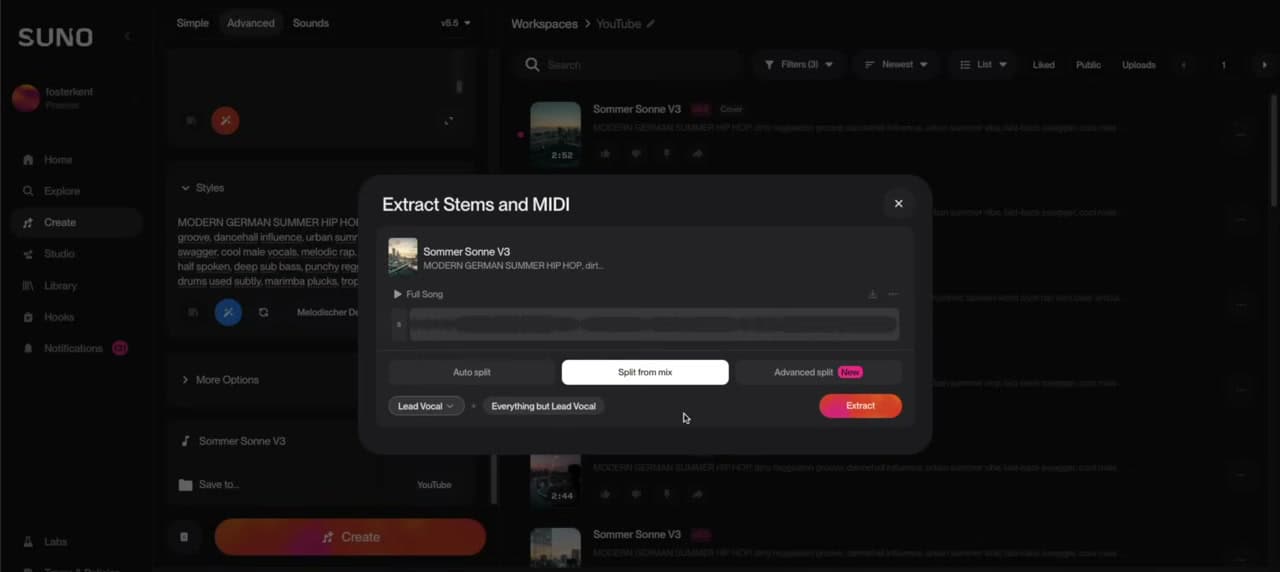
Suno Extract Stems and MIDI dialog with split options
Extract stems: Auto Split, Split from Mix and the new Advanced Split.

This part of the Suno tutorial is primarily aimed at producers. This section is particularly important for them. You can access it via the three dots next to the song. DownloadBesides MP3 and WAV, you can also download other files here. Stems down, meaning individual tracks. Suno offers several methods for this.

The three stem methods in this Suno tutorial

  • Auto Split: It breaks the song down into individual tracks, which together exactly recreate the entire song. You'll receive a ZIP file for importing into your DAW.
  • Split from Mix: The classic separation. You select, for example, lead vocal and everything-but-lead vocal. This gives you acapella and playback. Over 100 presets are available for this.
  • Advanced Split (new): Instead of calculating the trace, the AI ​​generates it completely newThis results in fewer artifacts. The sound is cleaner, but may differ slightly. More on this in the article. Suno Advanced Split explained.

MP3 or WAV – which should I choose?

Always use WAV for production and mastering. WAV remains uncompressed and retains full sound quality. MP3, on the other hand, is only suitable for quick previews or sending files. Therefore, consistently use the WAV format for serious projects.

Extend and further develop the song

Suno can also extend a song. Using the Extend function, you can add, for example, a longer outro or an additional intro. This allows you to develop a short idea into a complete arrangement.

From the experience of Peak-Studios: AI stems are a boon for practicing and quick sketches. However, they're rarely perfect. Often, artifacts remain, vocals have a baked-on reverb, and the frequency balance is uneven. For a radio-ready release, professional remastering is therefore worthwhile. Check out our [link/section/etc.]. Stem mastering for streaming, CD & vinyl and the article "Mastering AI Songs". Unsure how your rough mix sounds? Then our [link to relevant article/guide] can help you. Online mix analysis with report, measurements & professional feedback.

Further processing of stems in the DAW

You drag the downloaded stems directly into your DAW. There, you edit each track individually. Our article shows you how to cleanly mix Suno stems together. Suno stems mixSo you apply your own EQ to the drums, compress the bass, and automate the vocals. This allows you to get a professional result from an AI-generated song. That's exactly how we work in the studio.

Sample rate, bit depth and reverb

When exporting, also pay attention to the format. WAV at 44,1 kHz and 24 bits is a good standard. Another common problem is vocals with baked reverb. This reverb is difficult to remove cleanly later. Therefore, it's best to plan the desired room sound right from the start in the prompt.

Suno Studio: the multitrack editor (Premiere only)
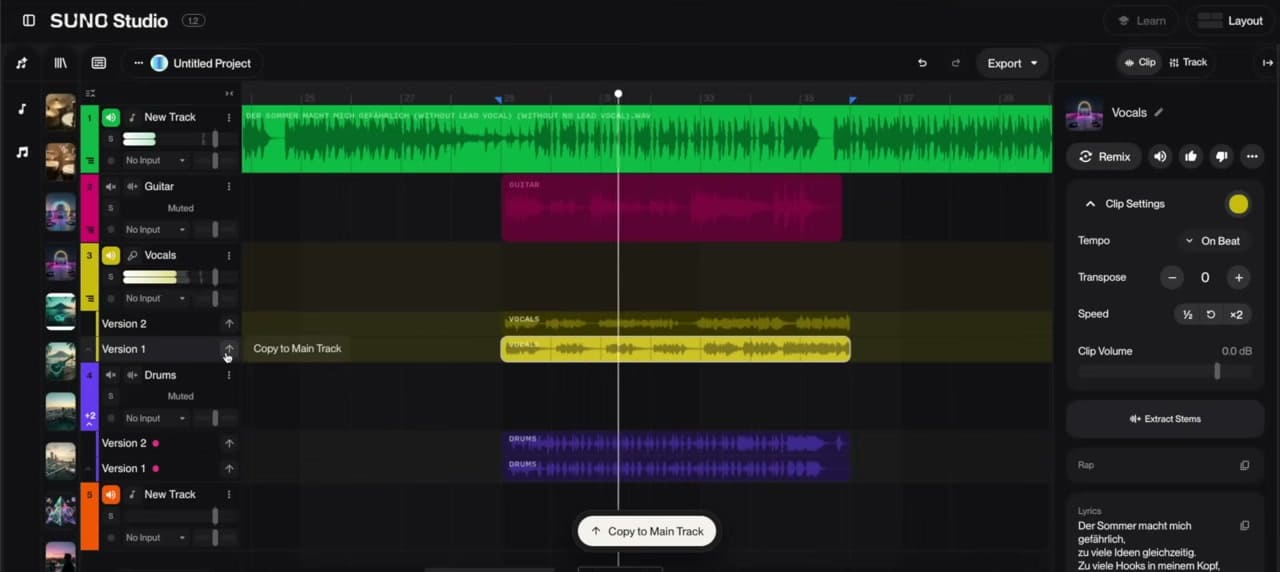
Suno Studio multitrack editor with guitar, vocal and drum tracks
Suno Studio: the multitrack editor with individually prompted instrument tracks.

Let's move on to the most exciting tool in the Suno tutorial. Suno Studio This is why Premier is worthwhile for many producers. At its core, it's a small DAW in the browser. The crucial difference: You prompt individual instruments to an existing song. So you don't always just create entire songs.

The hybrid workflow in this Suno tutorial

First, you upload your playback via New Project in Suno Studio. Then you drag it onto a bar. Next, you create a separate track for each new element. Then you select the section you want to edit. So you don't always have to generate the entire song.

Now you prompt for an instrument, for example "guitar". Suno will provide you with two versions. You activate these with a click and listen to them via Only Pick off each track individually. If you like one, move it to the main track. This way you build an arrangement track by track – for example, from guitar, vocals, and drums.

Zoom, Solo and versions

To zoom, hold down the Comment button and scroll with the mouse wheel. Use the Shift key to scroll left or right. You'll also find zoom in and out buttons at the bottom. You can mute or solo individual tracks at any time, helping you maintain an overview even with many tracks.

The honest boundary of Suno Studio

Suno Studio is impressive, but not yet a fully-fledged DAW. If your playback isn't perfectly aligned with the grid, fitting it in becomes difficult. A word of advice regarding language: Many people here prompt in English because that's how the software was developed. However, it works in German as well. For that last bit of precision, professionals still work in Bitwig, Logic, Ableton, or FL Studio.

Replacing a single instrument

Suno Studio is also suitable for targeted track replacement. For example, if you don't like the guitar part, you can replace just that track. To do this, you delete the old track and prompt for a new one. The rest of the song remains unchanged. This allows you to refine an arrangement step by step.

Export from Suno Studio

Once you're satisfied, you export your project. This means you either download the finished mix or the individual tracks. For further production, it's best to use the individual tracks. This gives you maximum flexibility within your DAW.

Sounds, Covers, Mashups & Publishing
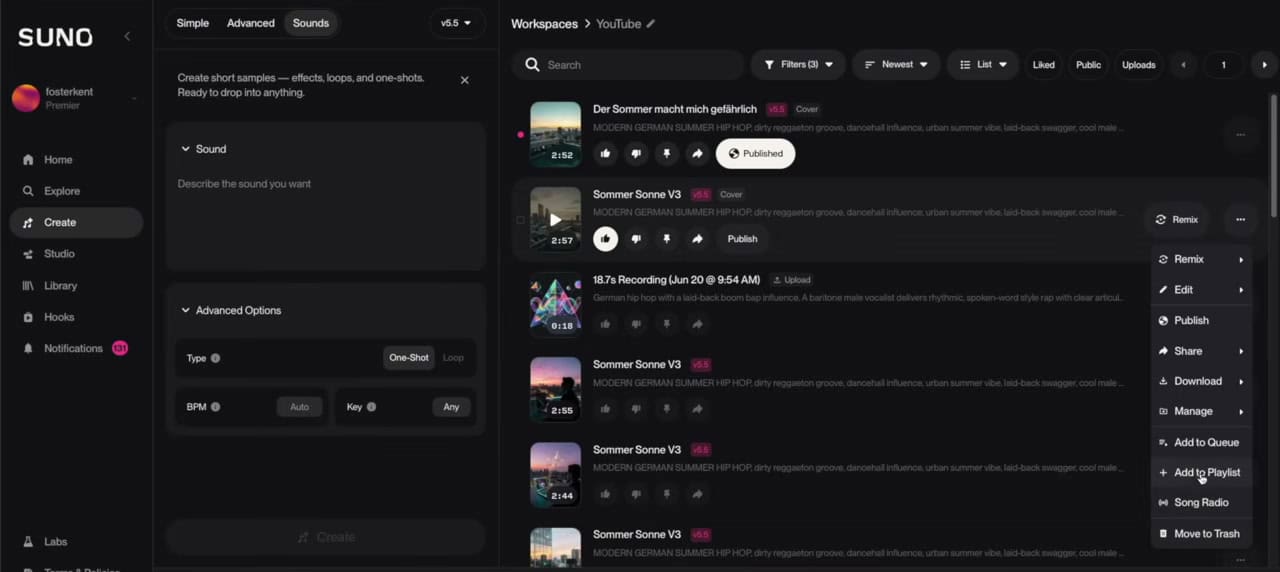
Sounds mode and remix menu with cover and mashup
Sounds, cover, mashup and remix in the context menu of a song.

This part of the Suno tutorial is especially worthwhile. Besides Simple and Advanced, the remaining functions open up many creative possibilities for you:

  • sounds: Short sound effects, one-shots and loops as building blocks.
  • Cover: The composition and lyrics remain the same, but the musical style changes.
  • Mashup: Merge two songs into one.
  • Sample this song: extract a sample from your song.

Publish via Explore

Suno has with Explore A showcase for songs has been built in. There you can listen to what others have created. For many songs, you can even see the prompt used and copy it. This is an excellent source of inspiration.

If you want to showcase your song there, you publish it. To do this, you apply via... Manage → Song Details Enter the title and text. Then you select. Publish.

publish on Spotify & Co.

If you want to release your song on streaming platforms, you'll need a music distributor. Beforehand, however, you should give it a professional finish. There's often a noticeable difference in sound quality between a raw AI-generated track and a final release. Therefore, a clean mix and master before uploading is worthwhile.

Music distribution and monetization

To release your music, you'll need a digital distributor. Providers like DistroKid, TuneCore, or CD Baby will get your song onto all platforms. Our article on [topic missing] shows you the available options. Music distributors comparedYou can also monetize your songs on YouTube. However, always be mindful of the commercial rights restrictions of your Suno plan.

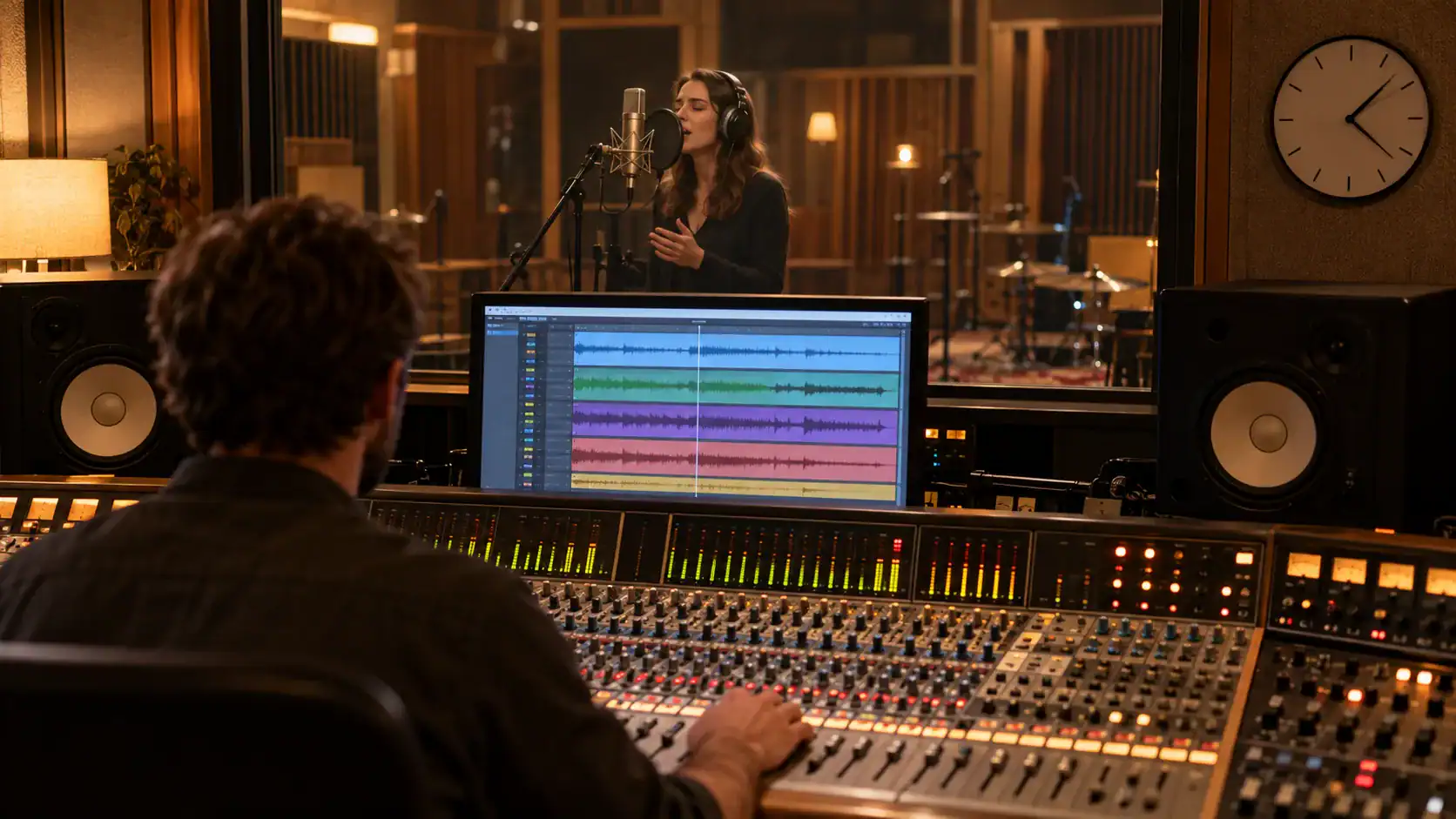
Strengths, weaknesses and legal aspects

In conclusion, this Suno tutorial takes an honest look at the software. Suno is powerful, but it has clear strengths and weaknesses. Understanding both allows for more targeted work. Therefore, here is an honest overview.

Suno Tutorial: Strengths and Weaknesses at a Glance

Strengthen: Enormous speed, surprisingly good vocals and a low barrier to entry. Weaknesses: Occasional artifacts, a sometimes "cold" sound, and limited timing precision. Therefore, Suno is excellent for generating ideas. The final fine-tuning, however, remains a manual process.

Typical sound problems of AI songs

As a studio, we often hear the same patterns in AI-generated songs. First, the mix frequently sounds muddy because the bass is undefined. Second, the highs sometimes sound harsh and glassy. Third, there's a lack of dynamics because everything is at the same volume. And fourth, slight artifacts are audible during stem splitting.

These are precisely the aspects that can be significantly improved during mastering. That's why a professionally post-processed AI song ultimately sounds much more sophisticated.

Legal aspects in the Suno tutorial: GEMA, copyright & labeling

When it comes to AI-generated music, a sober look at the legal situation is worthwhile:

  • Commercial rights: You only get that with the Pro plan. With the Free plan, you're not allowed to use songs commercially.
  • Who owns the songs? A paid account grants you usage rights. However, always check the current terms and conditions, as these are subject to change.
  • Cover versions: Anyone who covers a copyrighted song must clear the rights. This applies in the AI ​​world just as it does in the traditional world.
  • Labeling & EU AI Act: The rules are clearly moving towards mandatory labeling. Anyone who wants to publish legally must transparently disclose any AI content. Our article explains how platforms can even detect AI-generated music. Deezer AI Music Detector.

We collect current developments in our AI music news on tools, updates & trendsWe also discuss whether AI will replace studio work in the article. Can AI replace the work of mixing and mastering?.

Labeling in practice

Labeling AI-generated music is becoming increasingly important. Many platforms now ask whether AI was involved. Therefore, you should label your songs honestly. This protects you legally and builds trust with listeners. When in doubt, it's better to label transparently than risk problems later.

Take your Suno production to the next level: Have it reproduced 1:1 in high quality.

Have you created a powerful idea with Suno? Then take it to a professional level. At Peak-Studios, we completely re-produce your AI track – in true studio quality, played, arranged, and produced by humans. Your AI sketch will be transformed into a high-quality, standalone production.

Two key advantages of post-production

  • Own copyright: Under current law, purely AI-generated solo content generally does not enjoy its own copyright protection because it lacks human creative input. However, as soon as we professionally re-produce your track, it becomes an independent creative work – and thus provides genuine protection for your music. We delve deeper into the legal background in our article. Copyright in AI-generated songs.
  • No more AI watermarks: Post-production creates a completely new recording. This also removes the inaudible AI watermarks that providers like Suno embed in their exports. We explain in the article why you shouldn't remove these yourself. Do not remove AI watermarks.

For whom this is particularly worthwhile

Whenever you want your song to be legally compliant and in top quality: for official releases, sync and advertising licenses, film and games, or your artist development. Specifically, we let you produce your beat professionally or take over the entire process Music Production of your track. Our AI-generated songs mastering then gives it the final polish.

Your AI idea as a real, protected work – we reproduce your Suno track in high quality.

Ready for the finished sound? Have your Suno track mastered by Peak-Studios – transparent and release-ready.

From AI song to radio-ready master

The final step in this Suno tutorial is the most important for the sound. Suno gets you to an impressive raw track in record time. However, "impressive" is not the same as "finished." AI-generated music often sounds technically cold and lacks dynamics. Add to that the artifacts from stem splitting.

These services will enhance your Suno song.

This is precisely where professional post-production comes in. At Peak-Studios, we refine your AI-generated songs with the same craftsmanship as traditional productions. We work from our locations in Berlin and Würzburg. Specifically, these services will help you:

Want to delve deeper? Then our Mastering guide with an overview of all topics and Mixing guide covering technique, workflow, and genresThose who prefer to record on location are in the Berlin recording studio or by Recording studio in Würzburg correct.

The ideal approach is therefore a hybrid workflow. The idea and sketch are created with Suno, the fine-tuning takes place in the studio. This gives you the speed of AI and the quality of a true master.

Typical beginner mistakes in this Suno tutorial

These points will save you a lot of frustration and wasted credits:

  • Too vague a prompt and give up: "Cooler Song" delivers mediocrity. Those who stop after the first result are wasting Suno's potential.
  • Write the artist's name in the prompt: This will result in an error message. Describe the style instead.
  • Turn all the controls to the extreme: Weirdness and style influence belong in the middle at the beginning.
  • Overwrite lyrics: When uploading audio, make sure to select "Keep Current".
  • Use an outdated model: Anything below version 5 sounds noticeably weaker.
  • Consider the blank to be "finished": Frequency balance, dynamics and loudness almost always still require professional handling.

Quick start: your Suno tutorial in 7 steps

Finally, the short version. These seven steps will reliably lead you to your first good song:

  1. Register at Suno and open the Create area.
  2. Test a short prompt in Simple Mode.
  3. Switch to Advanced Mode for more control.
  4. Refine the prompt with a language model.
  5. Use structural tags such as [Verse] and [Chorus].
  6. Export the best version as WAV or in stems.
  7. Have the song professionally mastered.

Conclusion: powerful tool, but no substitute for craftsmanship

In short: In Suno, you can prompt entire songs. The best prompts are created using a speech model. Remember one rule: don't include artist names in the prompt. You can also upload your own audio, cover songs, and drag and drop individual tracks. With Suno Studio, you can even create individual instruments.

Suno democratizes music making. Nevertheless, the step from raw recording to release remains a craft. If you want to take your AI-generated song to the next level, then... Get in touch with Peak-StudiosAlternatively, you can start mastering your AI music right away. Learn more about us on our homepage. Online Mixing & Mastering Studios.

FAQ: Frequently Asked Questions about Suno

Yes, there's a free version with up to 10 songs per day. However, this doesn't grant you commercial rights. For publishing, you need the Pro (around €8 per month) or Premier (around €24 per month) plan.

Only with a paid account (Pro or Premier) do you receive commercial usage rights. Commercial use is not permitted with a free account.

The free version is sufficient for trying it out. Anyone wanting to publish needs at least the Pro version. Premier is particularly worthwhile for producers who want to create individual instrument tracks with Suno Studio.

Both options work. Many users achieve slightly better results with English prompts, as the software was developed in English. However, German prompts work reliably.

Download via the three dots next to the song. For separate tracks, use Auto Split, Split from Mix, or the new Advanced Split. Advanced Split re-renders the track and contains fewer artifacts.

Suno Studio is a browser-based multitrack editor included in the Premier plan. It allows you to add individual instruments to an existing song, rather than just creating complete tracks.

Yes – since Suno v5.5 (Pro/Premier). You upload a sample (from about 10 seconds) or record live, verify it with a random set, and then use your voice privately in your songs. Using other people's voices without their consent is prohibited.

Suno Tutorial: Rights, GEMA and Publishing

Currently, version 5.5 delivers the best quality. Some users prefer version 5. Anything below version 5 sounds noticeably weaker. Therefore, you should try to use the latest version.

With a Pro or Premier account, you receive commercial usage rights to your songs. However, always check Suno's current terms of service for specific cases, as these are subject to change.

Yes, you can get your songs onto Spotify and other streaming services through a music distributor. Make sure you have the commercial rights (starting with Pro) and give the track a professional finish beforehand. That way it will sound good enough for streaming.

The raw results are often impressive, but rarely release-ready. AI-generated songs tend to sound technically cold, with unbalanced frequencies and artifacts. For a professional sound, we therefore recommend subsequent mixing and mastering, such as our AI song mastering service.

Yes, Suno offers apps for iOS and Android. This allows you to create songs directly on your phone while on the go. The range of functions is similar to the browser version. However, for more complex work with Stems and Suno Studio, the desktop browser is more convenient.

The most common cause is artist or song names in the prompt. Suno blocks these for legal reasons. Therefore, only describe the style and do not mention any names. Excess credits or a text that is too long can also trigger an error message.

Image by Chris Jones

Chris Jones

CEO – Mixing and Mastering Engineer. Founder of Peak-Studios (2006) and one of the first online service providers for professional audio mixing and mastering in Germany.