Null test (audio): comparing two files with sample-level accuracy

A null test compares two audio files by inverting the polarity of one and summing it with the other. If both signals are identical and perfectly aligned, they completely cancel each other out – resulting in silence. What remains is the difference signal: the measurable difference between the two files.

Whether you get a new bounce from the mixing You check against the old one, two versions after the mastering are comparing or want to know if the sum of your Stems This method truly delivers the finished mix: With this method, you see and hear what actually differs – instead of relying on your hearing alone.

What is a null test?

The principle originates from physics: When two identical sound waves with opposite amplitudes meet, they cancel each other out. This is called destructive sound. interference. With digital audio, you use exactly this effect: You reverse the polarity of one of the two files, place it exactly on the other, and listen to the sum.

Reversing the polarity is something different than... Phase ShiftWith polarity reversal, all sample values ​​change their sign, regardless of frequency. A time offset, on the other hand, shifts the signal; its phase effect depends on the frequency. For a clean comparison, you need polarity reversal – and perfect timing alignment.

The result is called the difference signal, often also referred to as delta. It represents the calculated difference between the two files. If no difference signal remains in the compared section, the sample values ​​compared there are identical. However, this does not prove that the entire files are bit-identical. If a difference remains, the difference signal shows you precisely that difference – regardless of whether it originates from a different EQ, a different volume level, a different codec, or a missing instrument.

Why even a single sample offset distorts the result

At 44,1 kHz, a sample lasts only about 0,023 milliseconds. Nevertheless, this tiny shift is enough to prevent cancellation. Theoretically, at 1 kHz, only a reduction of about 17 dB remains, and at 100 Hz, about 37 dB. Above approximately 7,3 kHz, the difference signal is even louder than the original.

Therefore, a null test without precise alignment is of little use. Different audio exports often start at slightly different points, for example due to latency compensation, lead-in, or codec delay. The tool automatically detects this offset and displays it in samples and milliseconds. If it lies outside the search range, you can expand the range to ±10 or ±30 seconds in the expert settings.

Furthermore, it assesses the reliability of the found value. If several positions match equally well, for example with identical loops, the tool doesn't provide a single number but instead points out the ambiguity. It also detects swapped channels or reversed polarity.

Free online tool: Compare audio files in your browser

With our tool, you can perform the null test directly on this page. Select the original, for example, your stereo mix, and for comparison, either a second file or multiple stems, which will be automatically summed. The tool searches for the time offset within the set range, ± 2 seconds by default. If it can reliably determine the offset, it aligns the signals sample-accurately and measures how far the difference signal is below the original; otherwise, it displays the reason.

The analysis runs entirely in your browser. Your files are not uploaded. WAV and AIFF files are supported, and depending on the browser, FLAC and MP3 files may also be supported, in mono or stereo. Long songs usually work on computers; on smartphones, the available RAM may limit playback.

Have the mix and master checked by professionals.

You've noticed a difference and don't know where it comes from? In our mix analysis We'll listen to your song in the studio and tell you specifically what you can improve. Or you can hand the work over completely: We'll take care of it. Mixing your song from your stems and that Mastering for streaming, CD and vinyl.

Correctly reading the difference signal

The most important number is the zero depth: it gives in Decibel This indicates how far the difference signal lies below the original. The lower the value, the more similar the files are. The following table translates typical values ​​into proportions:

Zero depthRatio of difference to original (RMS)
-20 dB10%
-40 dB1%
-60 dB0,1%
-80 dB0,01%
Exact 0no remainder in the compared section
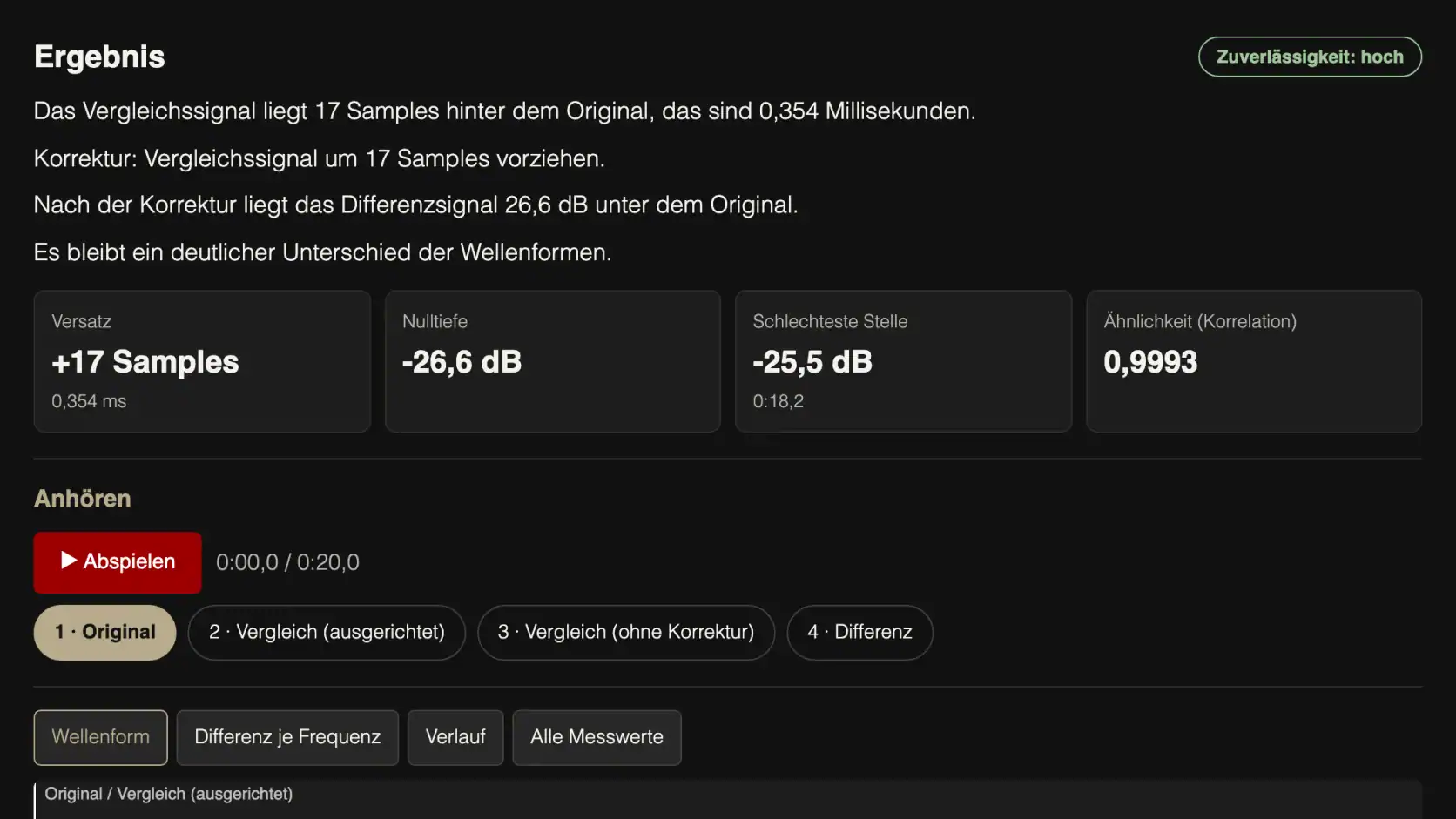
Peak-Studios' online null test tool: Result with offset, null depth, and difference signal
Example: This is what a result looks like in the null test tool – offset, null depth, worst point and similarity.

However, these values ​​only describe the level ratio. The source of any residual signal and its audibility cannot be determined solely from this – that depends on the audio material, listening level, and frequency. Therefore, the tool also displays the difference per third-octave band and its temporal progression. This allows you to identify whether the signal deviation is concentrated in the bass, treble, or a specific point in the song. Using the player, you can switch between the original, comparison, and difference signals and amplify the difference for monitoring purposes.

Important: Even a very good null test is not a judgment about the sound. The difference signal is not a measure of "better" or "worse". It only shows that and where two files differ – for example, through missing or added components, level, filter, or phase differences.

Why not zero two files

Often, a residual result remains after the null test, even though you haven't consciously changed anything. The most common causes are:

  • Dither: When exporting to lower-lying countries Bit Depth fugue Dithering Add random noise – this makes each export slightly different.
  • Level: Even normalization or a small level difference prevents complete cancellation: With a 0,1 dB difference, the calculated zero depth is only around -39 dB. The tool can also calculate a result with an optimal level factor upon request.
  • Pan Law: DAWs equalize the level during Panning They look different. This means that mid-range signals can have different volume levels between two programs.
  • Randomness in plugins: Modulation, LFOs, unison voices, or analog emulations with noise also produce slightly different results with each export.
  • Sample rate: If one file is moved to another Sample Rate The signal changes when converted. Therefore, export both files at the same rate.
  • MP3 and other lossy formats: The encoder removes signal components and often shifts the beginning. Therefore, a residual signal almost always remains compared to the original WAV file.

Stems are a special case: Whether the sum of all tracks exactly matches the final mix depends on how they were created. Effects on the master bus, buses, or software separation will lead to discrepancies. We explain how to deliver clean tracks below. Export stems; for AI traces, it's worth taking a look at How to properly mix Suno stems.

Conclusion: What the comparison shows – and what it doesn't

The null test is one of the most accurate methods for objectively comparing two audio files. Three things are crucial: the same sample rate, the same level, and sample-accurate alignment. If these conditions are met, the difference signal shows the deviation of the compared signals in the common section – in level, frequency range, and time course. Also check the channel assignment and any level adjustment that may have been used.

However, what it doesn't do is evaluate the sound. Whether one version sounds better is still determined by your ears and your monitoring equipment. But as a control tool for exports, versions, and stem sums, it's very fast.

FAQ – Frequently Asked Questions about Comparing Audio Files

"Zeroing" means that two signals completely cancel each other out after the polarity is reversed. In everyday studio practice, one might say "zeroing the exports" when two bounces leave no residue in the compared range.

The cause is usually random-based plugins, modulation, dithering, or a different export method. Deactivate these plugins one by one and export again; you'll quickly find the source.

There's no general limit. Listen to the difference on the player alone and gradually increase the amplification: If it's only noticeable with strong amplification and lies only in a narrow frequency range, the difference is usually difficult to hear in the song.

Because even a single sample offset at high frequencies can produce a loud residual. If the offset lies outside the search range or the signal is ambiguous, the tool will not report a reliable value.

The quickest way to find sources of interference is with a reference export: Export the same section twice with identical settings. If even this pair doesn't produce zeros, the cause lies within the project, for example in random plugins, and not in the change you actually want to check.

MP3 is lossy: The encoder removes signal components and often shifts the beginning of the file. Therefore, some residual data is almost always to be expected. It shows you what the encoding process changed.

Only if the signal in both files is identical and precisely aligned—for example, an instrumental and a version with vocals from the same session, without any processing on the master bus—will the reverse polarity essentially leave only the vocals. A limiter on the master bus will alter the two versions differently, leaving behind residual signals.