Logic Pro: Export tracks from 0:00 – This is how it works, even if the audio starts later
When working in Logic Pro, it often happens that audio files or individual tracks only start after a certain time in the project. But when you export your tracks, you want them to be 0:00 to ensure smooth synchronization later. In this blog I will show you how to easily transfer tracks from 0:00 export – even if the actual audio only starts later. This way you have all the necessary elements cleanly and synchronously under control!
Step 1: Make preparations
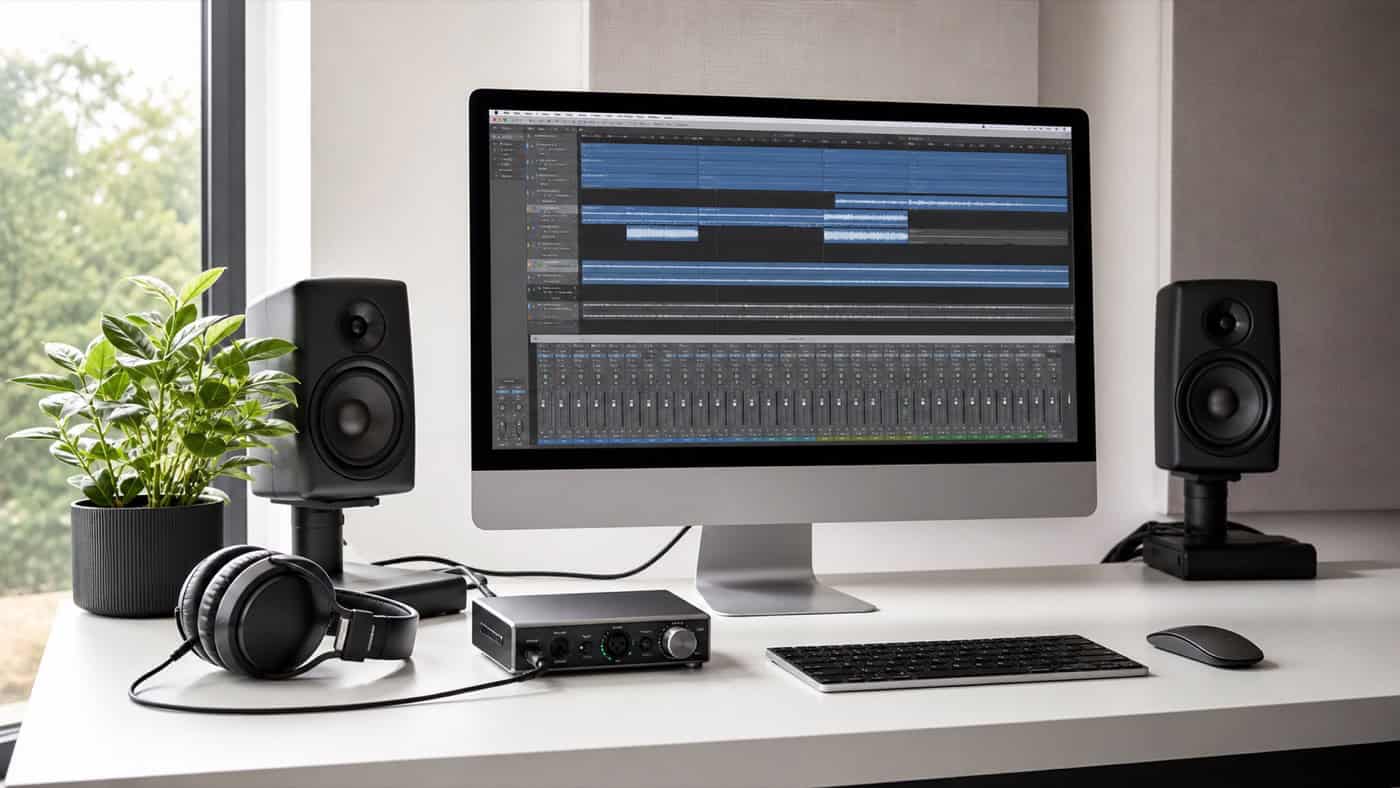
First, open your project in Logic Pro and select the track(s) you want to export. Make sure all necessary tracks are fully selected.
Step 2: Set locators
To ensure that your export of 0:00 begins, even if the audio starts later, you must Locator area (cycle range) correctly:
- Put that left locator (Cycle area) to the beginning of the project, i.e. to 0:00.
- Put that right locator to the end of the track you want to export. This point should be after the last audio element or region so that you export everything important.
Step 3: Add silence to the beginning
Even if your audio files start after a certain time, setting the left locator to 0:00 ensures that the export starts from this point. The area before the first audio is automatically exported as silence. This is particularly useful for keeping your tracks in sync in later projects or when mixing.
Analogue sound for your tracks too? Book the sound from the professionals!
Step 4: Export the tracks
Once the locators are set, you are ready to export the tracks. To do this, follow these steps:
- Go to File > Export... > Regions as audio files (if you export individual tracks). Alternatively, you can also Export selection as audio files if you want to export multiple tracks at once.
- In the export dialog box, select your desired export format, such as WAV or AIFF, as well as the bitrate (e.g. 24 bits).
- Check that the export settings are correct and then click Export....
Step 5: Check the export
After exporting, you should make sure that your audio files are correctly 0:00 Open the exported files in a new project or another program to check that the tracks start with silence if the audio starts later.