Configuration of a Windows audio workstation
A stable audio workstation is the foundation for relaxed recording, mixing, and mastering. Clicks, dropouts, and unexpected data loss will disrupt your creative flow and ultimately cost you more time than a properly configured computer could ever save. In this guide, we'll show you what really matters when it comes to hardware, system, backups, storage, drivers, and latency – pragmatically and without risky, quick fixes.
Hardware basics of an audio workstation
When building or buying an audio workstation, the highest benchmark score isn't what matters; instead, smooth, consistent performance is key. Three components determine how many tracks and plugins your computer can handle reliably: the processor, RAM, and storage drives. For the processor, high single-core performance is often more important than a large number of cores, as many DAWs can't parallelize individual effect chains indefinitely. A modern multi-core processor with strong per-core performance offers the best compromise in this regard.
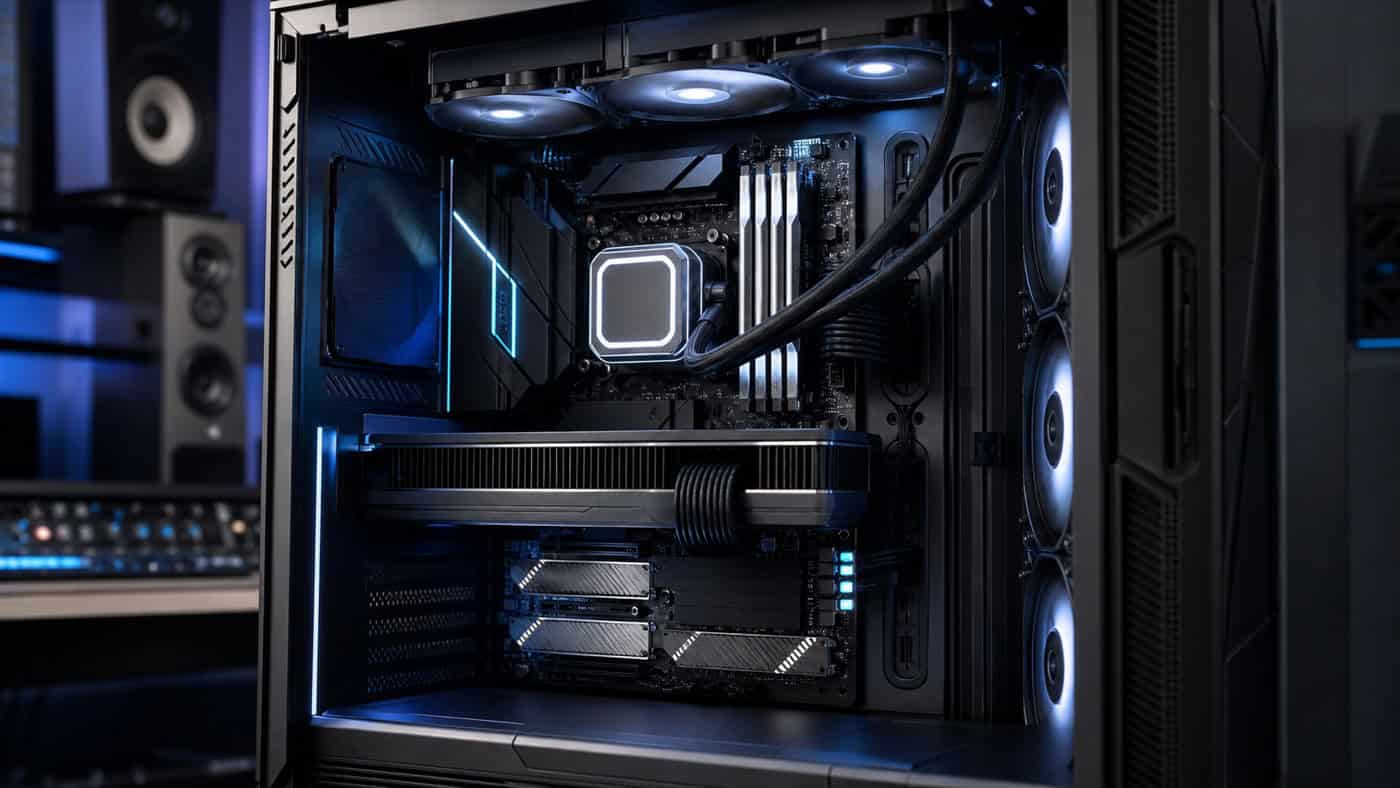
When it comes to RAM, it's better to plan a little generously. 16 GB is a sensible minimum, while 32 GB or more gives you headroom for sample-based instruments and large recording sessions. Pay attention to quiet cooling, as a workstation is often located in the same room as the microphone. Fans that spin up audibly under load will otherwise end up on your recordings. Well-designed cooling and clean cable management also ensure consistent temperatures and thus stable clock speeds without performance drops.
System selection & PC configuration
Basically, you have two paths to your own workstation. You can have a computer assembled by an audio specialist retailer, where the components are already matched – this saves time and reduces compatibility issues. Or you can build it yourself and optimize system and software settings independently. Both approaches work; the crucial factor is that the overall system suits your workflow.
More important than the latest hardware generation is a well-thought-out configuration. Set the power plan to maximum performance and disable automatic sleep modes during work to prevent the processor from throttling down mid-recording. Reduce operating system visual effects and prioritize background services in the performance settings. These adjustments are reversible and cost nothing – but they noticeably free up more resources for your DAW.
Backup & Data Security (3-2-1)
Before we delve deeper into optimizations, let's address the most important point of all: your data. We ourselves had to completely reinstall a computer and were glad that our backup was intact. Instead of individual, specialized solutions, we now recommend the tried and tested method. 3-2-1 ruleHold at least three copies your data before, on two different media types, and keep a copy outside the house on – for example in encrypted cloud storage or on a hard drive in another location.
In practical terms, this means: Your active working copy resides on the internal SSD. A second, automated backup runs regularly to an external hard drive or a NAS. The third copy is stored off-site to protect against theft, fire, or water damage, preventing data loss. For ongoing backups, it's best to use incremental backup software that only writes changes and therefore remains fast.
You should back up not only the audio files, but everything that you would otherwise have to painstakingly restore after a reinstallation:
- Project files and associated audio files
- Project templates, channel and interface settings
- License keys, serial numbers and activation codes
- Installed plugins and purchased software (no need to download again)
- Emails, passwords and login details
- Personal files such as photos and videos
Test your backup at least once with a real restore. A backup that you've never restored is just a guess in an emergency.
Storage & Hard Drives
The choice of drives determines how smoothly large sessions load and how reliably streaming samplers operate. A fast NVMe SSD as the system drive is standard today and ensures short loading and boot times. If possible, separate the system, projects, and sample libraries onto different drives to prevent access from interfering with each other.
Large sample libraries benefit greatly from SSDs because many instruments stream data from the disk in real time. Traditional hard drives are still a good, inexpensive way to archive completed projects. Leave enough free space on each drive, as a full drive will slow down and can cause dropouts during mixing or mastering. Keep your workspaces tidy and consistently back up completed sessions.
Drivers & Firmware
Drivers – especially those for your audio interface – are often overlooked, but they are crucial for stable performance. Keep not only your audio driver up to date, but also your chipset drivers, graphics drivers, and system updates. Always download drivers directly from the manufacturer's website and check if a new firmware update is available for your interface; it often fixes those sporadic crackling noises that are otherwise difficult to pinpoint.
Proceed with caution: If your system is running stably, you don't need to install every beta version immediately. Make a note of which driver and firmware versions work well so you can revert to them after a fresh installation. You can also streamline your graphics card settings: Disable unnecessary background functions to free up resources.
Windows audio optimization
Windows includes several convenience features that consume processing power in the background. With targeted adjustments, you can free up this resources for your DAW without compromising system stability:
- Energy options: Select maximum performance, disable automatic sleep modes during work.
- Power: Turn off visual effects and prioritize processor time for background services.
- System sounds: Set the sound scheme to "No sounds" to prevent warning tones from being included in recordings.
- Autostart & Services: Disable unnecessary startup programs. Experienced users can disable additional services via the system configuration.
- Indexing: Exclude working and sample drives from Windows indexing to reduce background access.
Regarding the topic Firewall and virus protection We strongly advise against completely disabling protection – this is particularly risky on a computer with internet access. Instead, create specific exceptions: Exclude your DAW and sample streaming processes from real-time scanning and allow them the necessary network communication for license activation. This way, the system remains protected without interfering with recording. If possible, disconnect your workstation from the network for sessions anyway, thus reducing background activity to a minimum.
Audio interface & latency
It happens during recording, mixing, or mastering If you experience crackling or dropouts, the cause is often latency and buffer size. Keep an eye on your DAW's performance meter and increase the ASIO buffer size if the load becomes too high. When recording, you want low latency for a direct playing feel; when mixing, however, the buffer can be larger to provide reserves for multiple plugins.
The connection type of your audio interface affects the achievable latency: devices using PCI or PCIe buses tend to achieve lower latencies than purely USB or FireWire interfaces. Also, keep in mind that many plugins themselves generate latency, which can add up noticeably. Modern DAWs compensate for this with latency reduction, but when recording live, it helps to temporarily bypass latency-intensive effects. Working with ample headroom will also prevent clipping – more on this in our articles on... headroom and True Peak.
Once your system is stable and properly configured, you can fully concentrate on the sound. If you'd prefer to leave the final polishing to professionals, we're happy to do it for you: simply upload your tracks via our Upload page Click here and check out our services related to mixing and mastering.